Overview
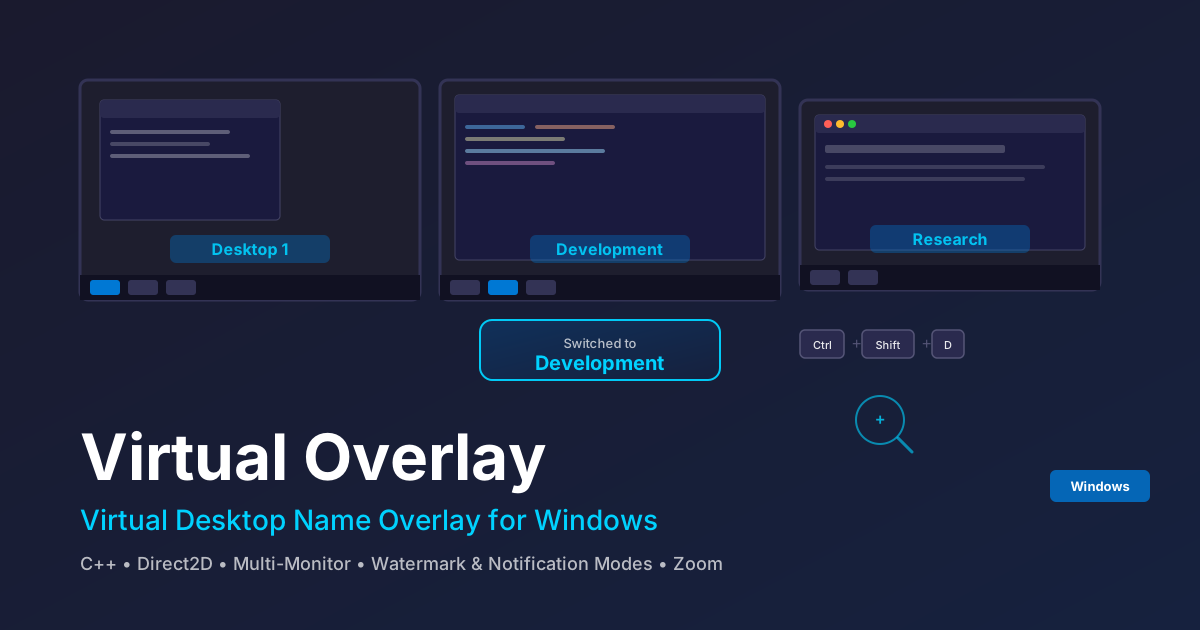
Virtual Overlay is a lightweight Windows utility that displays an overlay showing your current virtual desktop name. Whether you’re giving a presentation, recording your screen, or simply juggling multiple desktops, Virtual Overlay keeps you oriented with a persistent or on-switch notification showing which desktop you’re on.
Key Features
Watermark Mode
An always-visible, transparent text overlay displaying your current desktop name. Configurable position, color, opacity, and font size allow it to blend seamlessly into your workflow without obstructing content.
Notification Mode
A brief popup appears when you switch virtual desktops, then fades away. Ideal for users who want awareness without a permanent overlay.
Live Rename Detection
The overlay updates immediately when you rename a desktop in Windows Settings — no need to switch away and back. Desktop names are polled every 150ms from the Windows registry for near-instant updates.
Dodge Mode
The overlay automatically moves away when your cursor approaches, preventing interference with UI elements beneath it.
Zoom Feature
- Ctrl+Scroll to zoom in/out using the Windows Magnification API
- Touchpad pinch gesture support for natural zoom control
- Double-tap Ctrl to instantly reset zoom to 1x
Multi-Monitor Support
Works across all connected displays, ensuring desktop name visibility regardless of which monitor you’re focused on.
Keyboard Shortcuts
| Shortcut | Action |
|---|---|
| Ctrl+Shift+D | Toggle overlay visibility |
| Ctrl+Scroll | Zoom in/out |
| Pinch gesture | Zoom in/out (touchpad) |
| Double-tap Ctrl | Reset zoom to 1x |
Technical Architecture
Core Technologies
- C++ with Visual Studio 2022 and C++ Desktop Development workload
- CMake 3.20+ for cross-configuration builds
- Direct2D for hardware-accelerated overlay rendering with per-pixel alpha transparency
- Windows Magnification API for the zoom feature
- WiX Toolset 5 for MSI installer packaging
- nlohmann/json for configuration file management
Project Structure
src/
├── main.cpp              # Entry point, message loop
├── App.cpp               # Application controller
├── config/               # Configuration management
├── desktop/              # Virtual Desktop detection (COM + registry polling)
├── overlay/              # D2D overlay rendering
├── settings/             # Settings UI
├── tray/                 # System tray icon
├── input/                # Modifier key polling, dynamic mouse hook
├── zoom/                 # Magnification API, zoom controller
└── utils/                # Helpers (logging, monitors, animation)
Virtual Desktop Detection
Uses undocumented COM interfaces for desktop detection with automatic fallback to the public IVirtualDesktopManager interface and registry polling when COM APIs change between Windows versions. Desktop names are read from HKCU\SOFTWARE\Microsoft\Windows\CurrentVersion\Explorer\VirtualDesktops\Desktops\{GUID}\Name.
Rendering Pipeline
- Direct2D with per-pixel alpha for true transparency
- UpdateLayeredWindow for watermark mode (no visible window chrome)
- Acrylic/Mica backdrop support for notification mode
Zoom Architecture
The Magnification API (MagSetFullscreenTransform) is initialized only while actively zoomed and fully uninitialized when zoom returns to 1.0x. Mouse speed/acceleration settings are saved and restored around each zoom session to compensate for DWM cursor pipeline issues. No permanent low-level hooks — modifier key state is polled via GetAsyncKeyState, and the mouse hook is only installed while the modifier key is held.
Installation
MSI Installer (Recommended)
Download the latest VirtualOverlay.msi from Releases. Per-user installation requires no admin rights, adds to Windows startup automatically, and installs to %LocalAppData%\VirtualOverlay.
Portable
Download virtual-overlay.exe and run directly — no installation needed.
Development Challenges & Solutions
Challenge: Windows Virtual Desktop API Instability
Problem: Microsoft’s undocumented COM interfaces for virtual desktops change between Windows versions, breaking detection.
Solution: Implemented a dual-strategy approach — primary COM-based detection with automatic fallback to the public IVirtualDesktopManager interface combined with registry polling, ensuring compatibility across Windows 10 and 11 builds.
Challenge: Zoom Without Input Latency
Problem: The Magnification API introduces mouse cursor latency when running without uiAccess elevation due to a DWM cursor pipeline issue.
Solution: Mouse speed and acceleration settings are saved before zoom and restored after, compensating for the DWM issue. The Magnification API is fully uninitialized when not zoomed to avoid any residual effects.